

Leadbit - conversion tracking and offer setup
Leadbit does not use a typical affiliate tracking platform such as Cake or HasOffers, so it needs its own setup.
Step 1: Create a traffic source
Section titled “Step 1: Create a traffic source”Go to the Sources section in Leadbit and create a traffic source. You need it when getting your offer links.
Step 2: Create a tracking URL
Section titled “Step 2: Create a tracking URL”Go to the offers section, find an offer and click Create tracking URL.
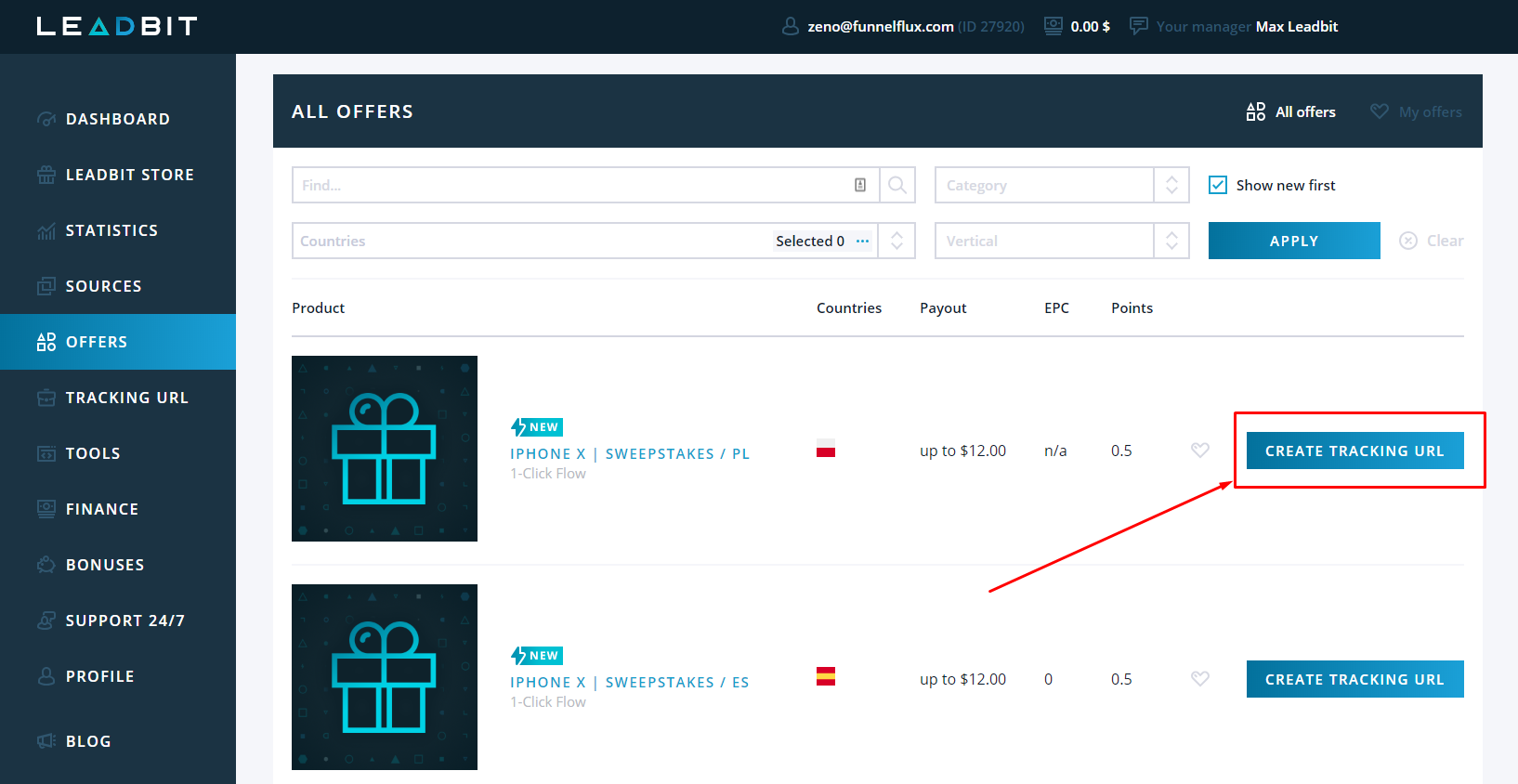
This opens a flow configuration for that offer.
Step 3: Configure basic flow settings
Section titled “Step 3: Configure basic flow settings”The flow settings control what a user sees when loading your Leadbit link. Pay attention here: letting Leadbit rotate landers for you is very different from rotating them in FunnelFlux.
There are three lander sections:
- Landing: landers the user is rotated between.
- Pre-lander: landers shown before the other landers.
- Mobile landing: landers that mobile users are redirected to.
If you select a mobile lander in the first Landing section, everyone rotates to it, including desktop users. If you tick Redirect mobile traffic to mobile Landing and select landers there, Leadbit creates a separate rotation for mobile users.
So to send mobile traffic only to the mobile lander, tick that box, select mobile landers, then untick any mobile landers in the original Landing section. Changing the Landing section unticks everything in the mobile section, so configure the sections in order:
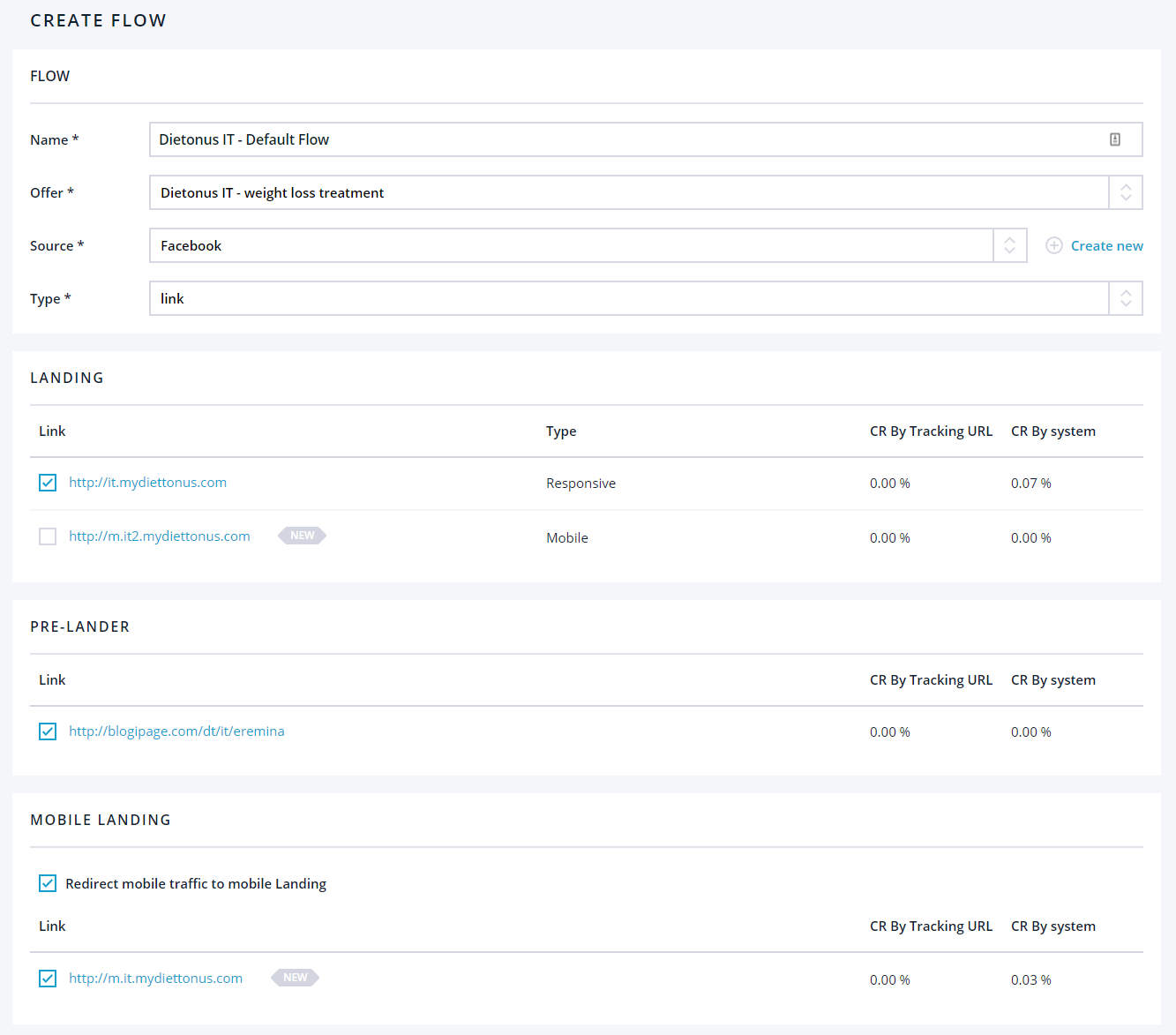
Important: if you want mobile and desktop offers to appear as separate nodes in FunnelFlux, you have two options:
- Make one flow for desktop traffic only and a separate flow for mobile, rotating only the desktop and mobile landers respectively. Add them as separate offers in FunnelFlux and route in your funnel using a condition.
- Add the offer node twice in FunnelFlux and send mobile to one and desktop to the other. Use a single Leadbit flow that redirects mobile users to the mobile pages internally. Leadbit redirects visitors on the back end, and FunnelFlux still shows the nodes separately. This is the simpler option.
This only affects the funnel. In the stats, a breakdown by device type shows the same data whether or not you split traffic in the funnel.
The choice is whether you make the mobile redirection decision or let Leadbit make it.
Step 4: Configure postback tracking
Section titled “Step 4: Configure postback tracking”Leadbit lets you set postback URLs for each lead state, which allows dynamic tracking.
There are three postbacks:
- Lead pending
- Lead confirmed
- Lead declined
There are several ways to handle these. We suggest:
- Lead pending: send a conversion with 0 revenue and the conversion ID as the TxID.
- Lead confirmed: send a conversion with the payout as revenue and the conversion ID as the TxID.
- Lead declined: send the same as pending but with
-1as revenue.
A postback with flux_payout=-1 deletes the existing conversion that has the same hit ID and TxID.
Because pending and declined both use lead-{id} as the TxID, a declined lead removes its pending conversion.
This shows normal conversions as well as pending leads with zero revenue, and removes pending leads that are declined.
The Hit: Conversion TxID grouping in FunnelFlux also shows the specific Leadbit lead IDs.
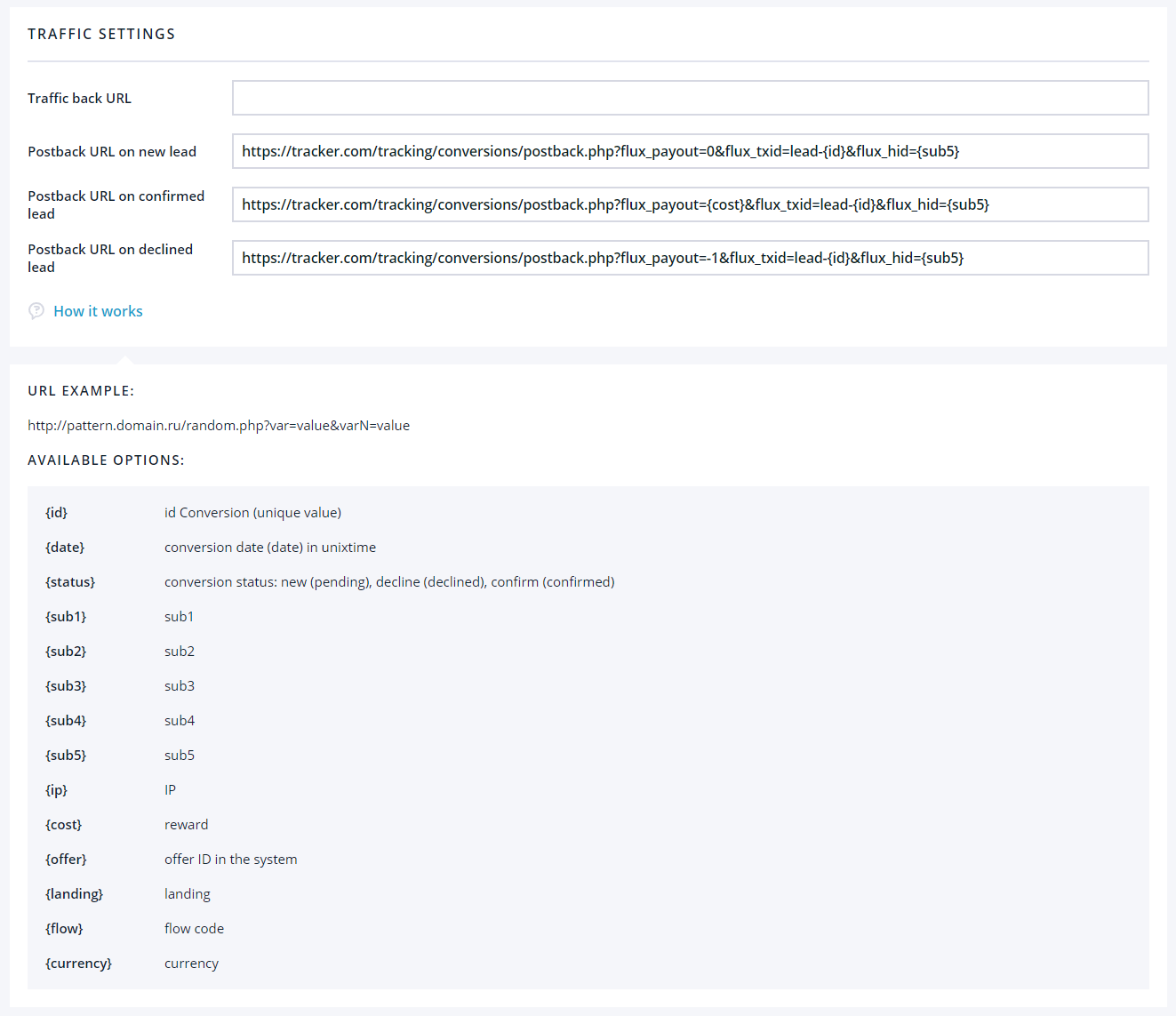
Click How it works to see Leadbit’s tokens.
This example uses {sub5} for flux_hid, so you must pass the FunnelFlux hit ID to Leadbit in its sub5 parameter (see step 7).
The example URLs in text format:
https://tracker.com/tracking/conversions/postback.php?flux_payout=0&flux_txid=lead-{id}&flux_hid={sub5}
https://tracker.com/tracking/conversions/postback.php?flux_payout={cost}&flux_txid=lead-{id}&flux_hid={sub5}
https://tracker.com/tracking/conversions/postback.php?flux_payout=-1&flux_txid=lead-{id}&flux_hid={sub5}
Step 5: Monetize remnant traffic
Section titled “Step 5: Monetize remnant traffic”Next to the postback URLs is a Traffic back URL field, left empty in the example above.
It is a bounce URL for visitors that Leadbit cannot monetize on the offer you are setting up the flow for.
You can enable Comebacker as well as the sound and image options. Then enter a URL in the traffic back URL field for non-monetizable traffic. Ideally, use a FunnelFlux link to a standalone node in your funnel for a lander or offer you are comfortable sending these users to.
Right-click that node and choose Send Traffic Here. The window is Funnel URL. Use that link. Alternatively, you can link an action from the affiliate offer node to this page and use the action link with organic parameters. You don’t need the CTR of this click-through, though, and it would generate offer clicks in your stats, which is likely not what you want.
Step 6: Track conversions in ad platforms
Section titled “Step 6: Track conversions in ad platforms”Leadbit lets you enter pixel IDs so its landers and conversion pages load your ad platform pixels.
For Facebook, send conversions from FunnelFlux with the Conversions API instead. See Using the Facebook Conversions API (CAPI) to track conversions.
Universal Analytics no longer processes data, so do not enter a Universal Analytics ID.
Step 7: Set up your offer link
Section titled “Step 7: Set up your offer link”After you save your flow, Leadbit takes you to your offers page:
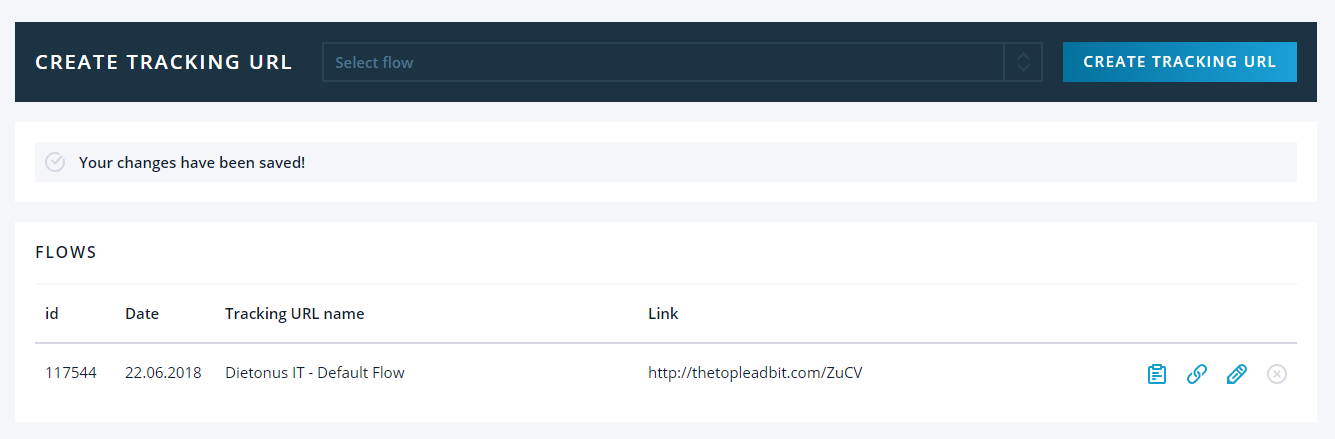
Click the link icon to open this popup:
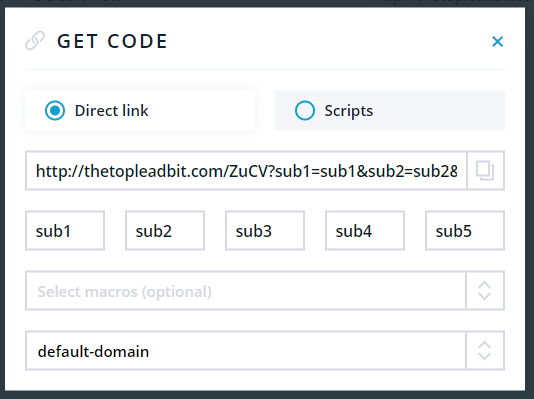
You can pass data in sub1 through sub5, which have default placeholders of the same name, for example:
http://thetopleadbit.com/ZuCV?sub1=sub1&sub2=sub2&sub3=sub3&sub4=sub4&sub5=sub5Copy that link and create an offer in FunnelFlux.
You can pass whatever you like in sub1, sub2 and so on, but you must pass the hit ID in sub5, because that is what the postback sends back.
An example URL for your offer in FunnelFlux:
http://thetopleadbit.com/ZuCV?sub1={funnel-id}&sub2={trafficsource-id}&sub3={trackingfield-pubid}&sub5={hit-id}Pass whatever other data you need.
Step 8: Test your tracking
Section titled “Step 8: Test your tracking”Always test your tracking. Load your Leadbit URL yourself in an incognito browser, and test your funnel fully as well.
If Comebacker is enabled and you are outside the countries the offer accepts, you should be redirected to your traffic back URL, which confirms it works.
Turn Comebacker off if you want to test and see the real offer.