

Creating a PPC campaign on Microsoft Advertising
This tutorial sets up a search campaign in Microsoft Advertising (formerly Bing Ads) and sends the clicks through FunnelFlux.
Step 1: Create a traffic source
Section titled “Step 1: Create a traffic source”Create a traffic source in FunnelFlux. There is no Microsoft Advertising template; you can start from the Bing template under Use template, or add the fields yourself. A name such as “PPC: Microsoft Advertising” is fine.
Add these tracking fields:
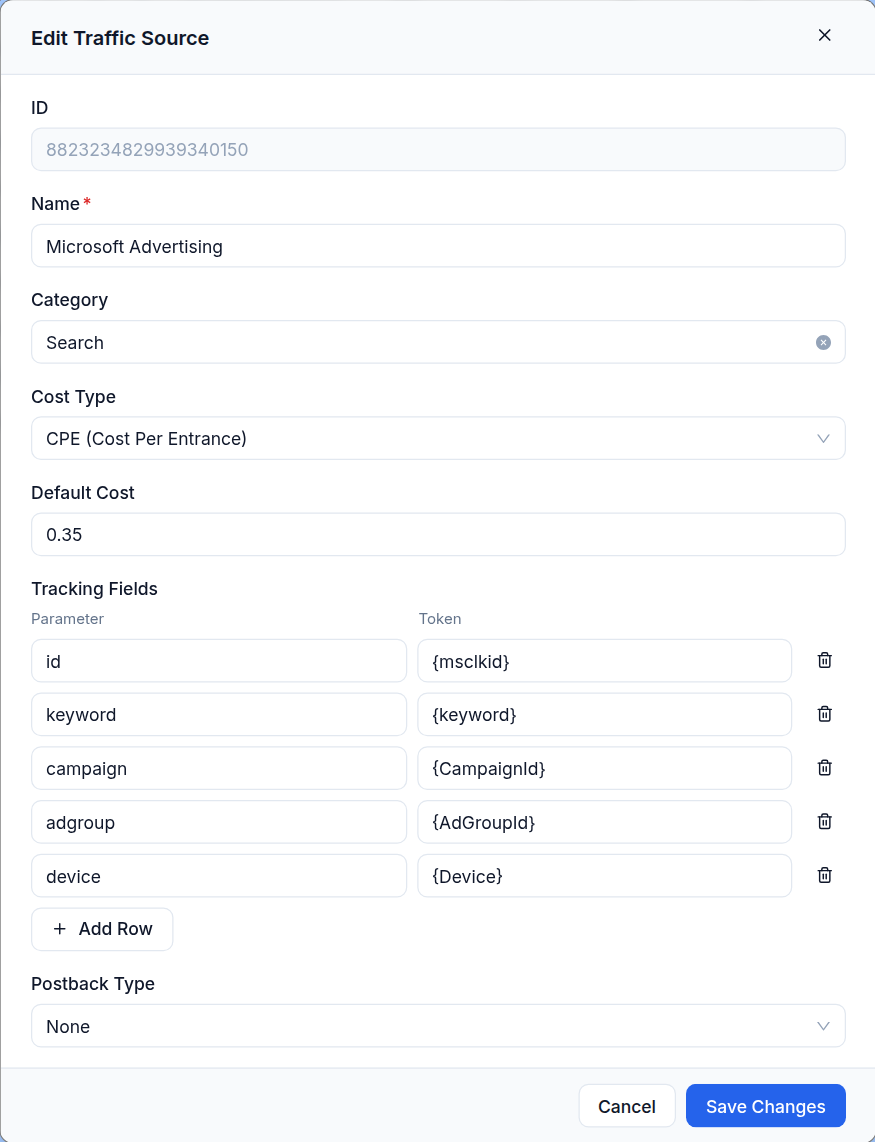
These fields track:
{msclkid}— Microsoft’s click ID.{keyword}— the keyword you bid on that brought the visitor or conversion.{CampaignId}and{AdGroupId}— which campaign and ad group the click came from.{Device}— the device type of the visitor.
Step 2: Create your funnel
Section titled “Step 2: Create your funnel”This tutorial uses a simple funnel:

Step 3: Get your funnel link
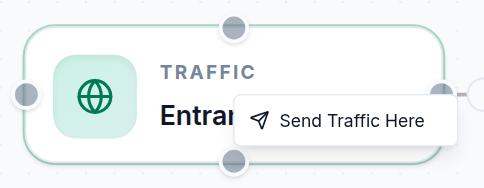
Section titled “Step 3: Get your funnel link”After the funnel exists, right-click the traffic node and select Send Traffic Here.
The Funnel URL window opens. Select the Microsoft Advertising traffic source and copy the funnel link.
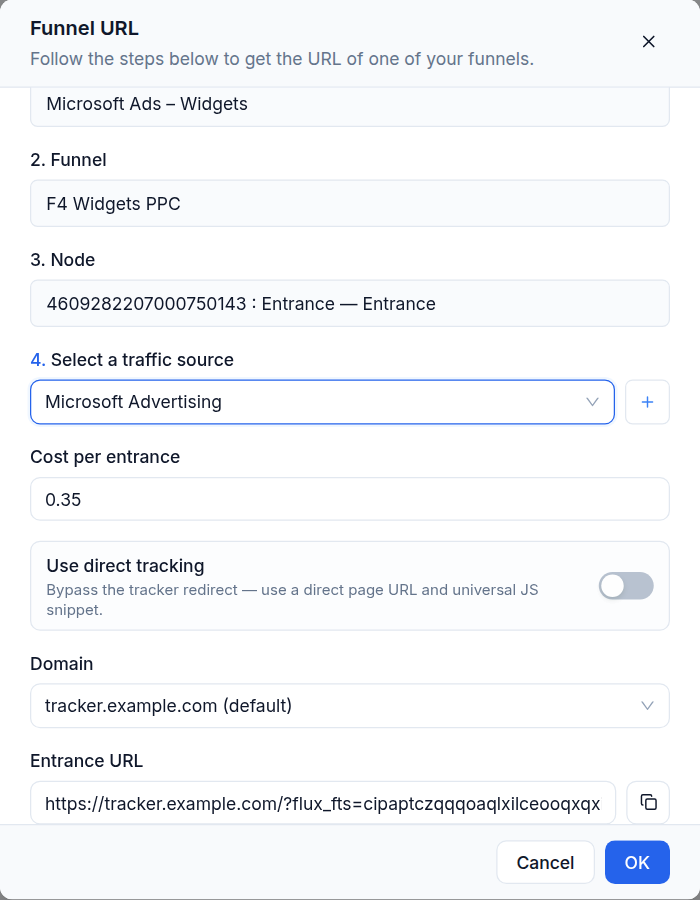
Keep that link. You need it for the ad destination URL.
Step 4: Start the Microsoft Advertising campaign
Section titled “Step 4: Start the Microsoft Advertising campaign”In your Microsoft Advertising account, create a new search campaign:
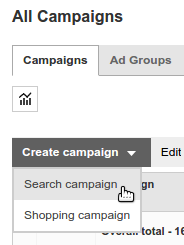
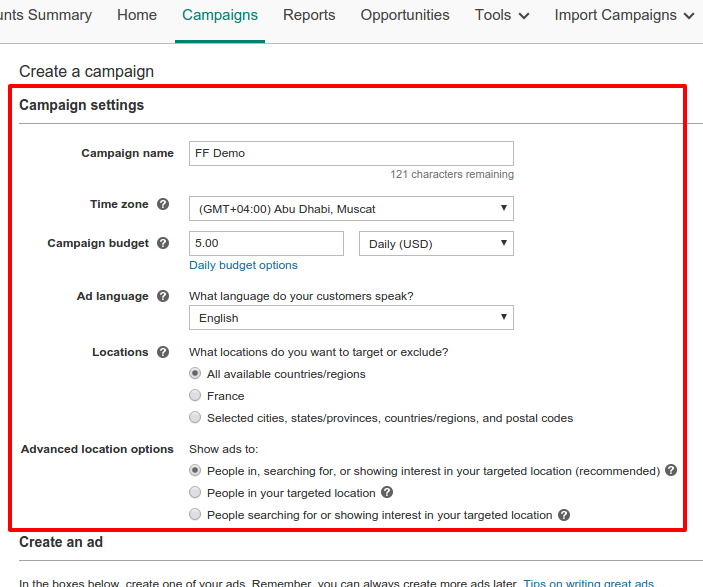
Step 5: Enter your campaign settings
Section titled “Step 5: Enter your campaign settings”The images below are examples. Set the campaign values for your own offer and traffic.
Step 6: Create your first ad
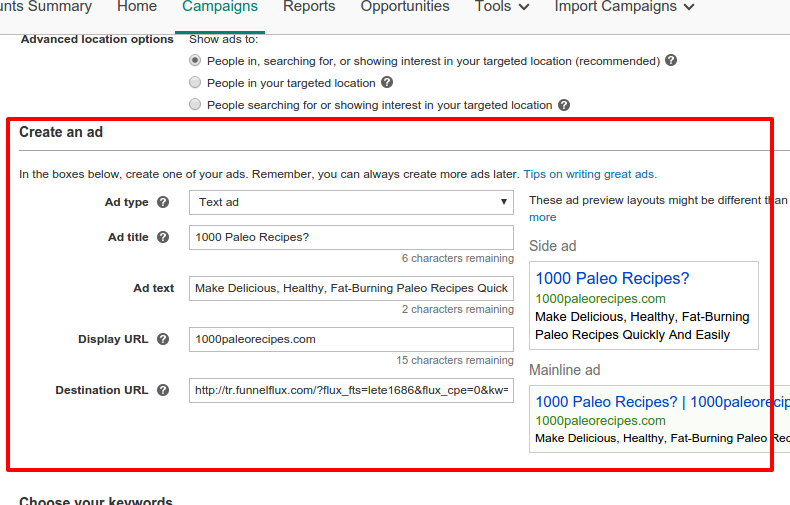
Section titled “Step 6: Create your first ad”Enter:
- The ad title.
- The ad text.
- The display URL. This is the URL of the final page visitors are sent to. It can be the lander URL or the offer URL.
- The destination URL. This is the funnel URL from step 3.
It looks like this:
Step 7: Choose your keywords
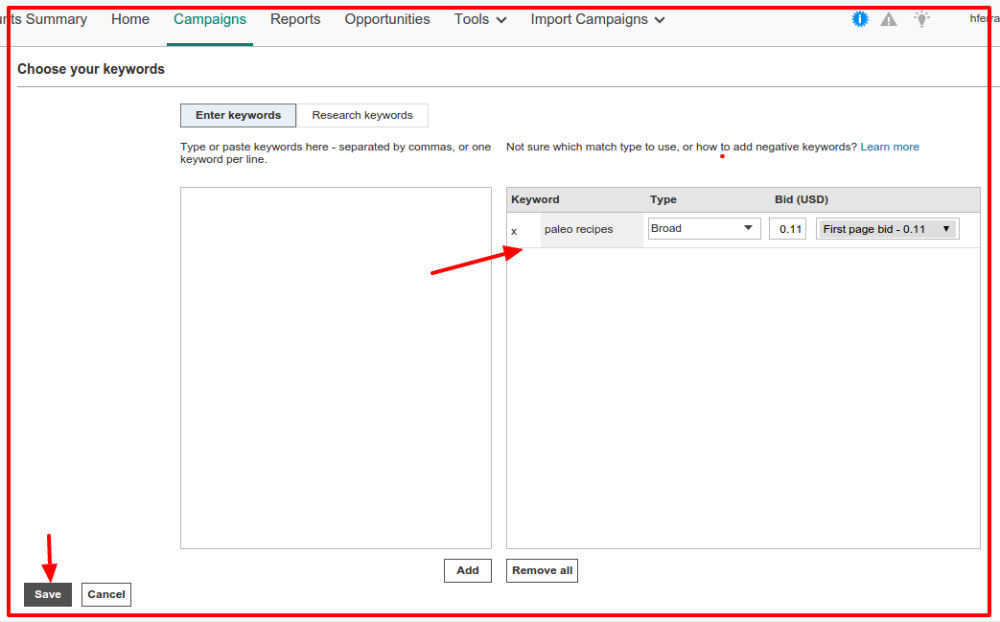
Section titled “Step 7: Choose your keywords”Choose the keywords you want to bid on, then save.
Step 8: Set your targeting
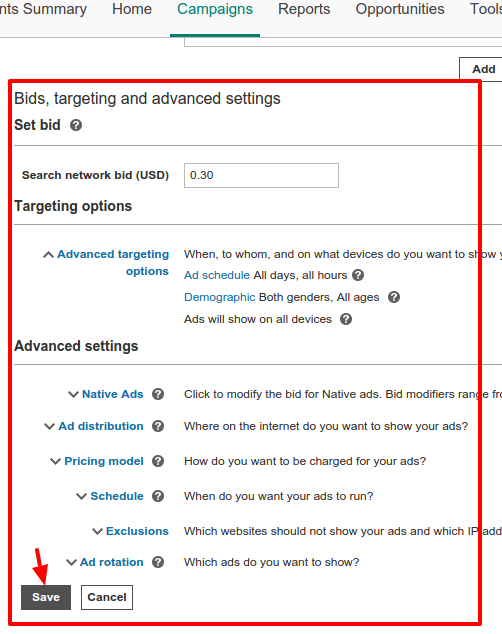
Section titled “Step 8: Set your targeting”Set targeting and advanced settings, then save.
The campaign is then ready in Microsoft Advertising.