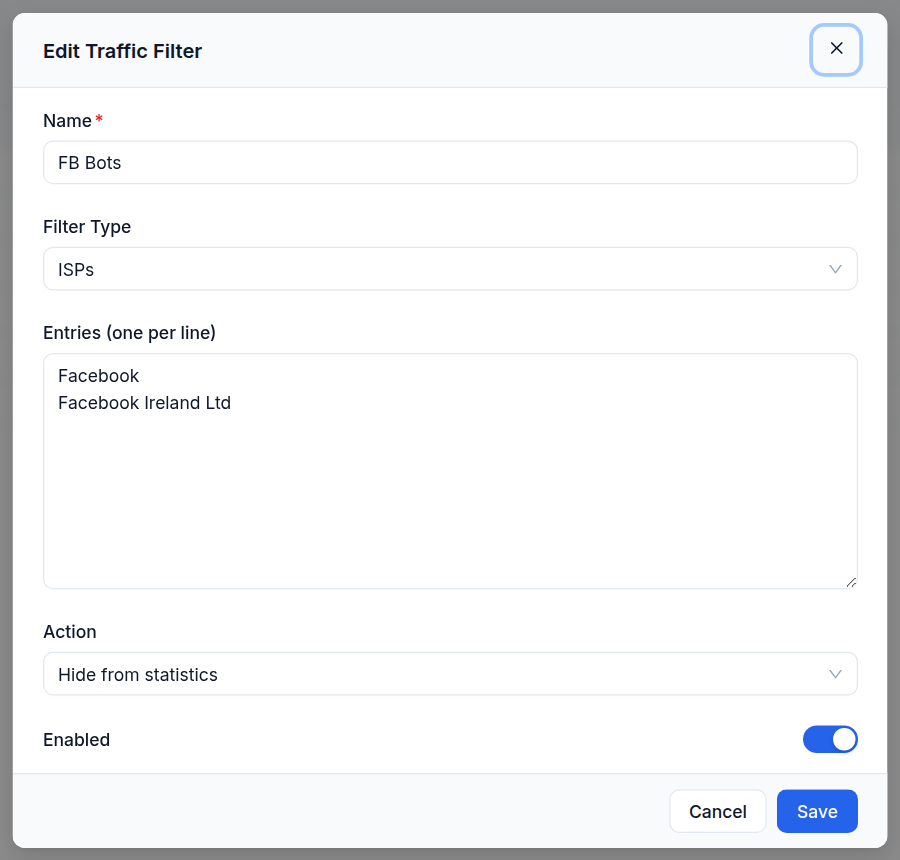

The traffic filters section
Traffic filters catch visits that match a rule and do one of two things with them:
- Hide from statistics keeps the visit out of your reports.
- Hide & Redirect hides the visit and sends the visitor to a URL you choose.
Filtered visits are still recorded. To see them in a report, open the report settings and turn on Show filtered traffic.
Filters are global: they apply to every campaign and funnel. A Hide & Redirect filter runs before the visitor enters a funnel, so conditions inside the funnel never see that visit.
Create a filter
Section titled “Create a filter”- Click the settings (gear) icon in the top bar, then Traffic Filters.
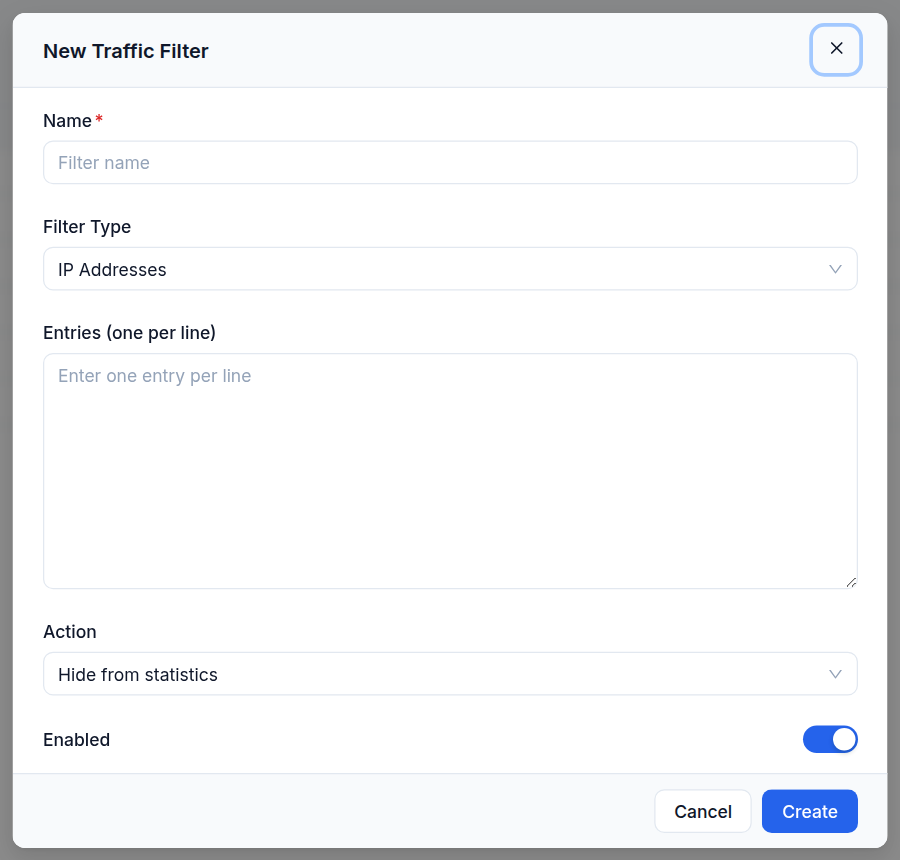
- Click Add Filter. The New Traffic Filter window opens.
- Enter a Name.
- Choose a Filter Type (see below) and fill in its entries.
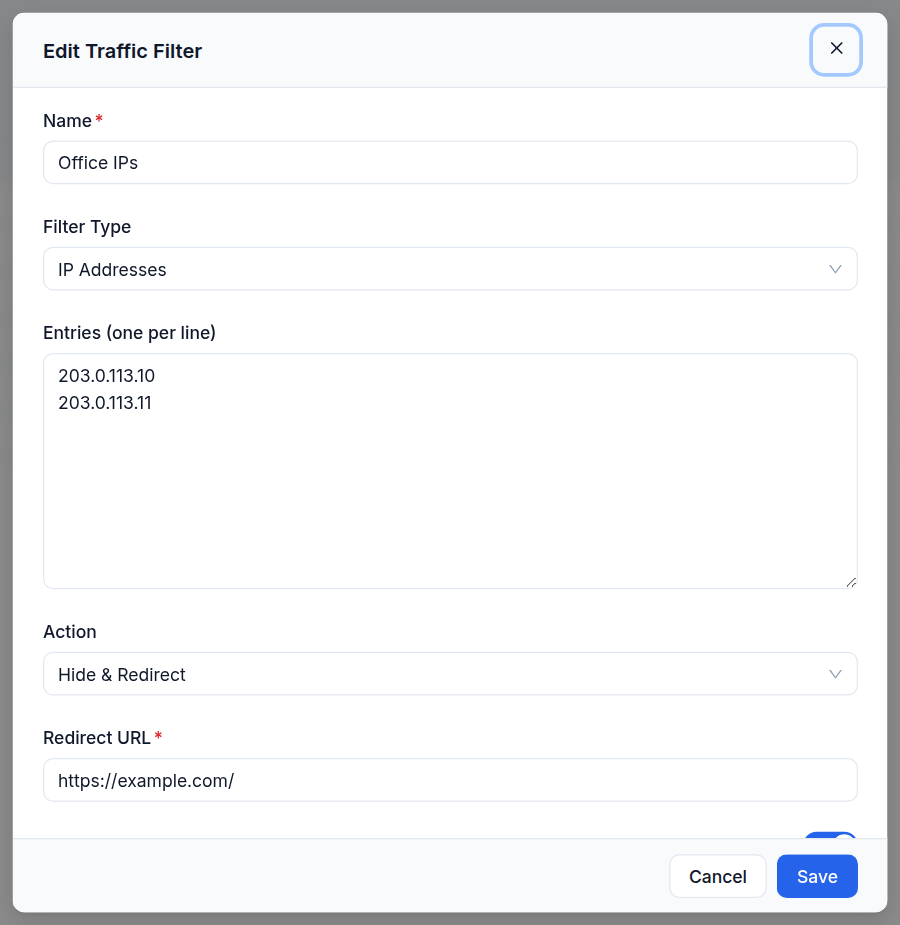
- Choose the action: Hide from statistics or Hide & Redirect. Hide & Redirect needs a Redirect URL.
- Leave Enabled on, then click Create.
A new or changed filter applies to visits from then on. To apply it to stats you already have, click the reset-stats button on the filter’s row in the list. For an enabled filter this asks to Apply filter retroactively; for a disabled filter it asks to Unfilter retroactively. Both rewrite historical stats in the same way as Reset Stats, so use them with care.
The Redirect URL can be any valid address, including a FunnelFlux link. You can send filtered visits to a separate funnel that routes them the way you want, then review that funnel’s report with Show filtered traffic on.
Filter types
Section titled “Filter types”Known Bots & Spiders
Section titled “Known Bots & Spiders”This uses the built-in bot list, such as search-engine crawlers. It needs no entries. A new install already has an enabled Known bots filter of this type that hides matching visits.
IP Addresses
Section titled “IP Addresses”Add one IP address per line.
IP Ranges
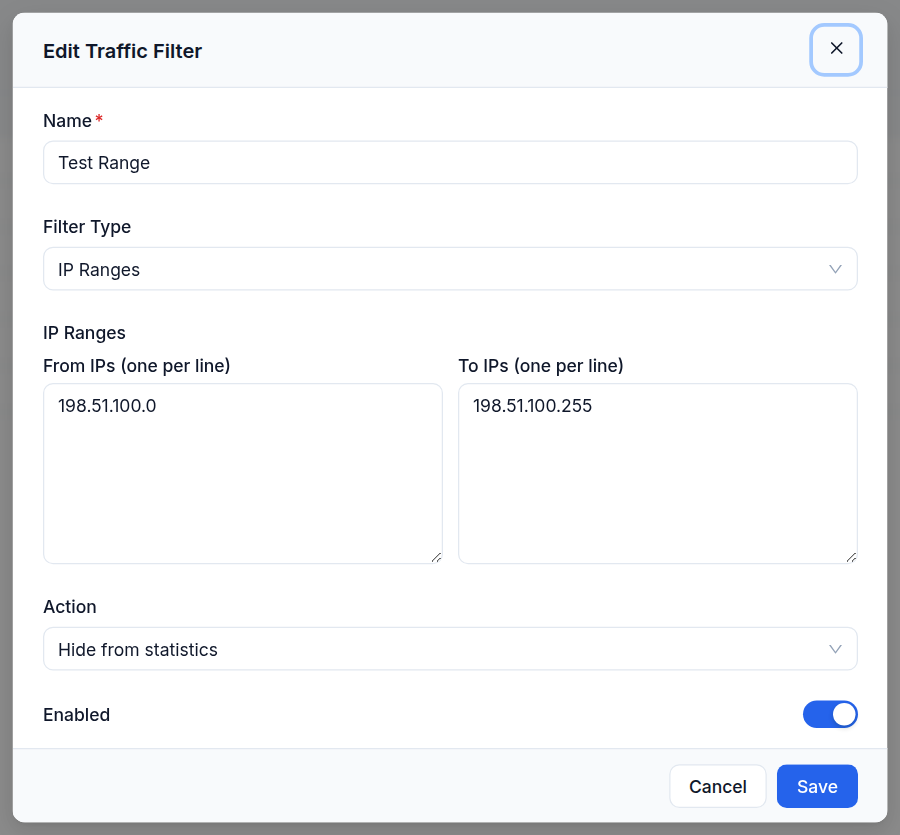
Section titled “IP Ranges”Each range has a start and an end address. Put the start addresses in From IPs and the end addresses in To IPs, one per line. Line 1 of each box forms the first range, line 2 the second, and so on.
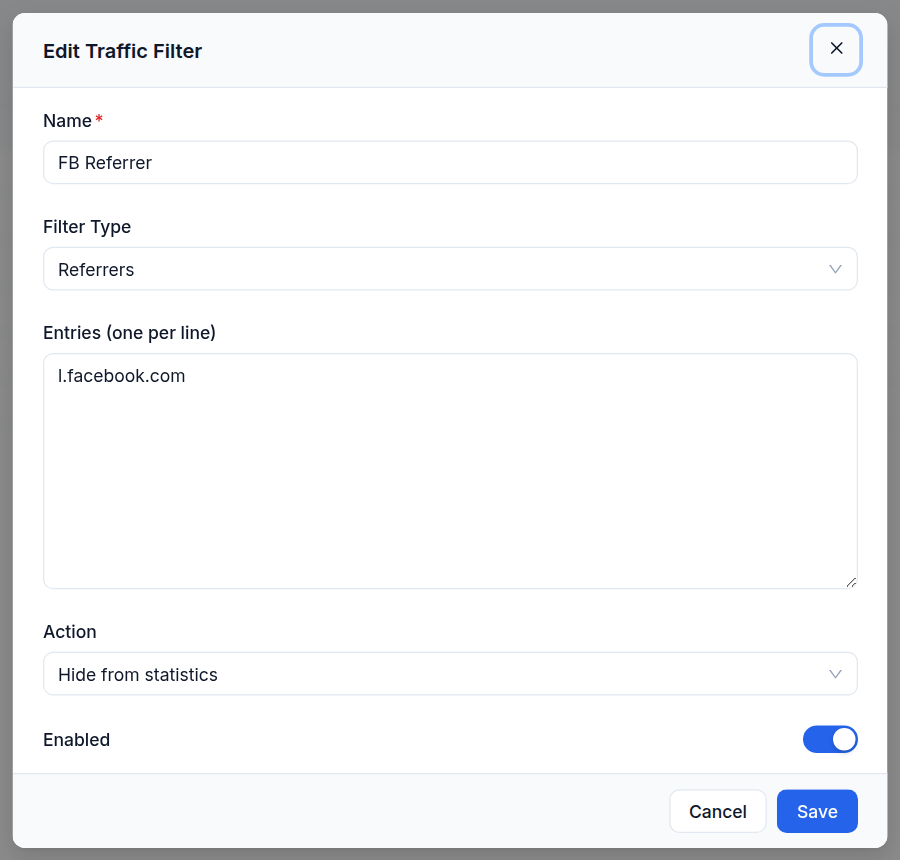
Referrers
Section titled “Referrers”Add one entry per line. A visit matches if its referrer contains the entry, ignoring case.
Pick referrers from your own stats: group a report by referrer and add the ones you don’t want.
l.facebook.com is a common example.
It appears when Facebook’s automatic link check visits your ad URL, so every new ad can add hits from it.
User Agents
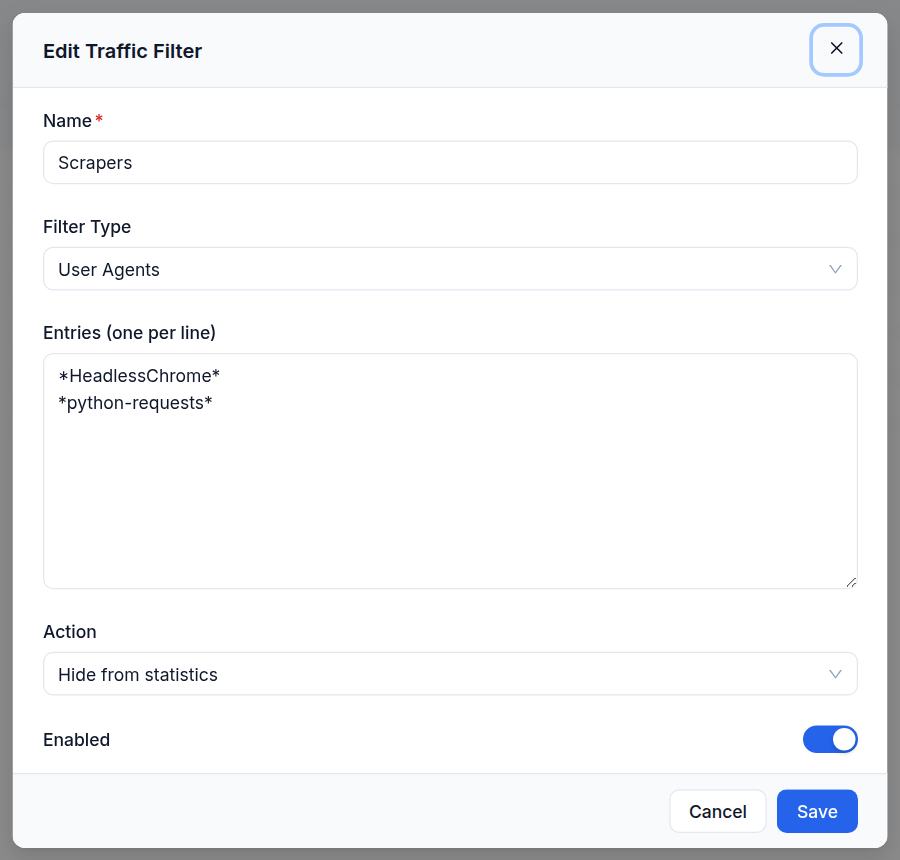
Section titled “User Agents”A user-agent is a header that describes the browser and device requesting a URL. FunnelFlux uses it to work out browser, device type, and operating system.
Add one entry per line.
A visit matches if its user-agent contains the entry, ignoring case.
For example, facebookexternalhit matches Facebook’s link crawler.
Enter plain text only: * is not a wildcard and is matched as a literal character.
Group your stats by user-agent to find the ones you want to hide.
Countries
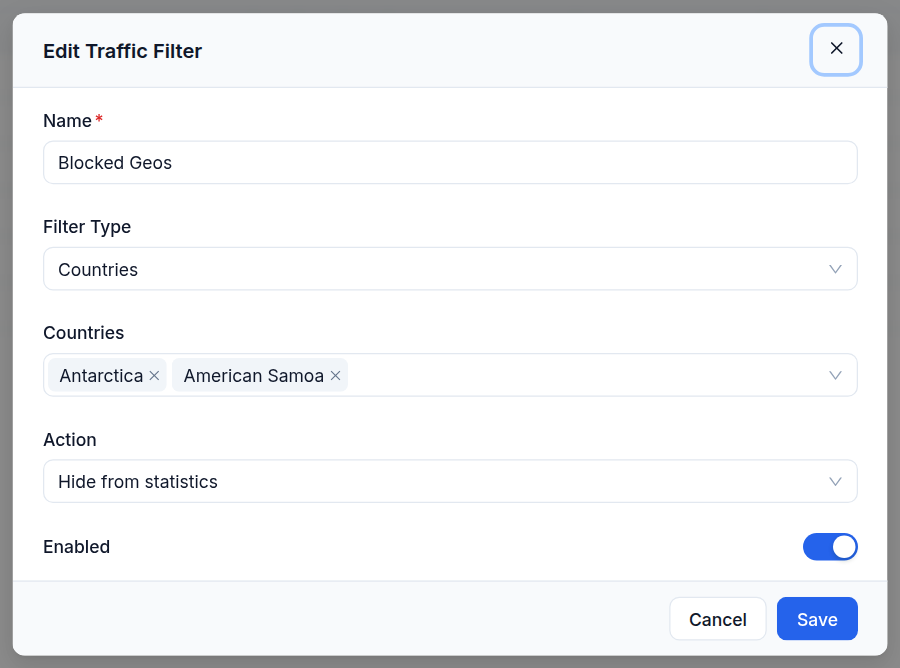
Section titled “Countries”Select the countries you want to filter from the list.
Add one entry per line.
A visit matches if its ISP name contains the entry, ignoring case.
A line with amazon matches every ISP whose name contains “amazon”, which may hide more than you meant to.
Copy ISP names from your reports to get them exactly right.