

Configuring an offer
Offers are pages you add to funnels as offer nodes. They are the node type that converts and carries revenue.
An offer is not always the end of a funnel: if you control the offer page, you can send visitors somewhere else afterwards. Usually, though, the offer belongs to a third party, and visitors you send there do not come back into your funnel.
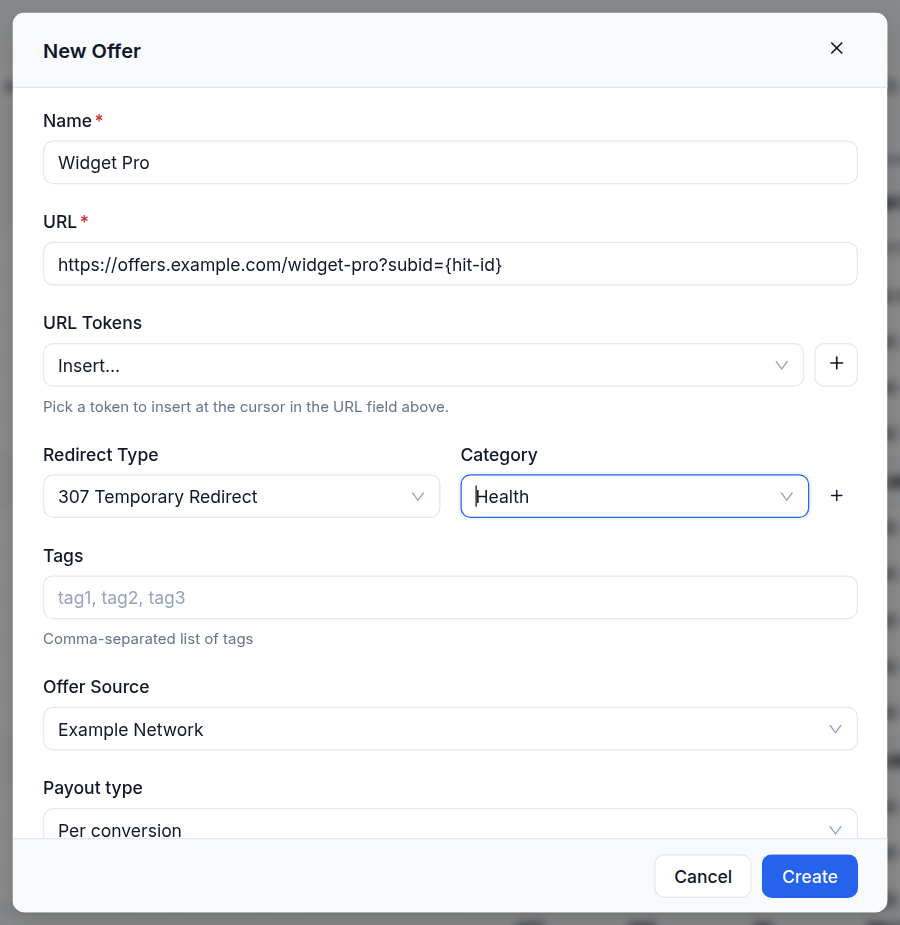
Open Offers and click Add Offer.
Basic fields
Section titled “Basic fields”- Name: the offer name.
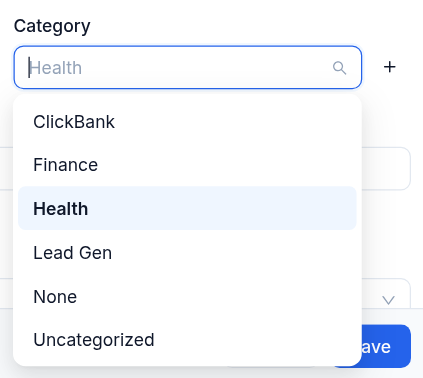
- Category: only used to sort offers. Grouping by vertical or offer type works well.
- Offer Source: the affiliate network or advertiser the offer comes from. See Configuring an offer source.
- Payout type: Per conversion or Revenue share. FunnelFlux stores this choice but does not use it to calculate revenue. With Revenue share, the Payout value is not treated as a percentage, so pass the actual payout in the conversion postback.
- Payout: the default payout. When the conversion postback has no payout, FunnelFlux records this value as the revenue. A payout sent back in the conversion postback replaces it.
- Notes: optional notes for your own reference.
Offer URL
Section titled “Offer URL”Enter the offer’s tracking link, usually from your affiliate network, in URL. Add the parameters you want to pass to the network.
For example:
https://network.example/click?offer=123&s1={funnel-id}&s2={trackingfield-id}&s5={hit-id}s1={funnel-id}tells you on the network side which funnel sent the visitor, which helps when you run many funnels. You could send{trafficsource-id}or{campaign-id}instead. There is no lander ID token: a path to an offer in FunnelFlux can pass through any number of nodes, or none.s2={trackingfield-id}passes data from the traffic source. The token is{trackingfield-fieldname}, where fieldname is a tracking field parameter from your traffic source, such as id, creative or pubid.s5={hit-id}passes FunnelFlux’s unique tracking ID. The network sends it back in the conversion postback, so this one is required for postback tracking. Use the parameter your offer source is set up for.

URL tokens and custom fields
Section titled “URL tokens and custom fields”-
URL Tokens lists every token FunnelFlux supports. Pick one to insert it into the URL.
-
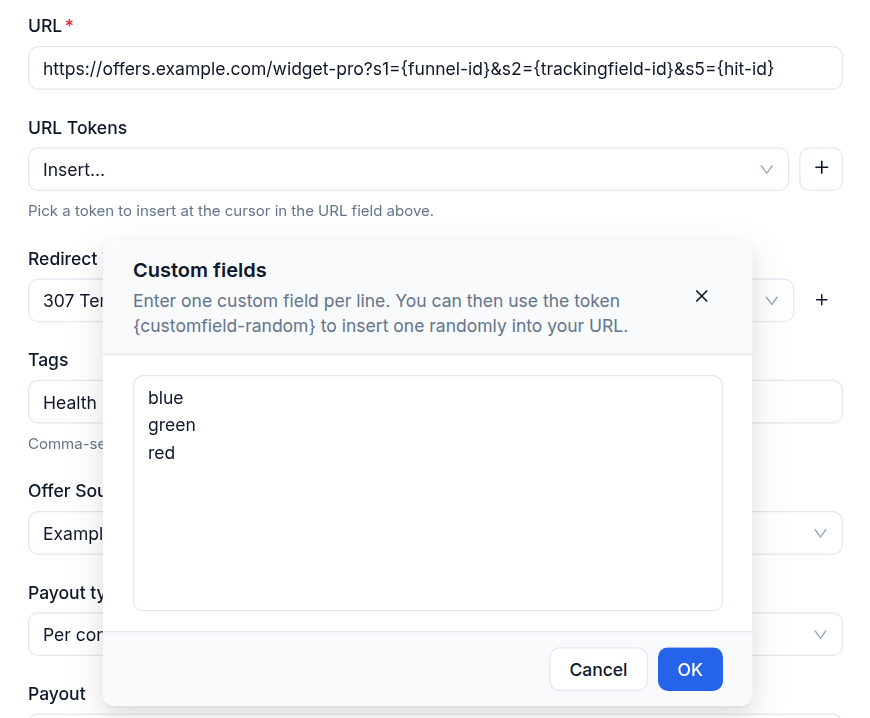
Custom fields is an advanced option most users do not need. Enter values one per line, then put the
{customfield-random}token in the URL. FunnelFlux inserts one of the lines at random. Use it when you want to vary some of the data you pass.
Redirect type
Section titled “Redirect type”Redirect Type sets how FunnelFlux sends visitors to the offer:
- 307 Temporary Redirect: the default. If you are not sure, use this.
- 301 Moved Permanently: a standard redirect that tells browsers and search engines the destination has moved permanently. Browsers can cache it, so prefer 307 for links whose destination may change.
- UMR (Meta Refresh): Ultimate Meta Refresh, which blanks the referrer when you do not want to pass it on. It is not a simple double meta refresh.
- Fluxify (Reverse Proxy): an advanced mode not covered here. FunnelFlux loads the destination page through the tracker and rewrites it, instead of redirecting to it.
Whatever you choose, test your links and check the data that arrives in your affiliate network or offer source panel. If in doubt, use the chat in your FunnelFlux dashboard or email support@funnelflux.com.