

How to use the update costs function
Cost, revenue, and ROI in the tracker are only useful if the cost is accurate.
Traffic sources usually hold the detailed cost. You often cannot pass that cost in the URL, for example on a CPM bid, or when you do not want the cost visible in the link. No tracker can infer every click’s cost at the detail you want without that data.
Updating costs by hand is part of keeping stats accurate, unless the traffic source has a direct integration. Those integrations are limited on any tracker.
Cost Updates
Section titled “Cost Updates”Open the Updates menu and choose Cost Updates. That page rewrites historical cost for one traffic source over a date and time range. The rewrite cannot be undone.
Under Scope, choose the Traffic source. Funnel is optional. Leave it as All funnels to apply the cost for that source across funnels.
Under Time range, set the Timezone, then the From — to range.
Under Cost, in How to apply, choose Total cost or Cost per entrance, and enter the amount. Total cost is the spend for that source, and for the funnel if you set one, across the range. Cost per entrance is a fixed cost on each entrance in the range. Click Update Cost, then confirm Update historical cost.
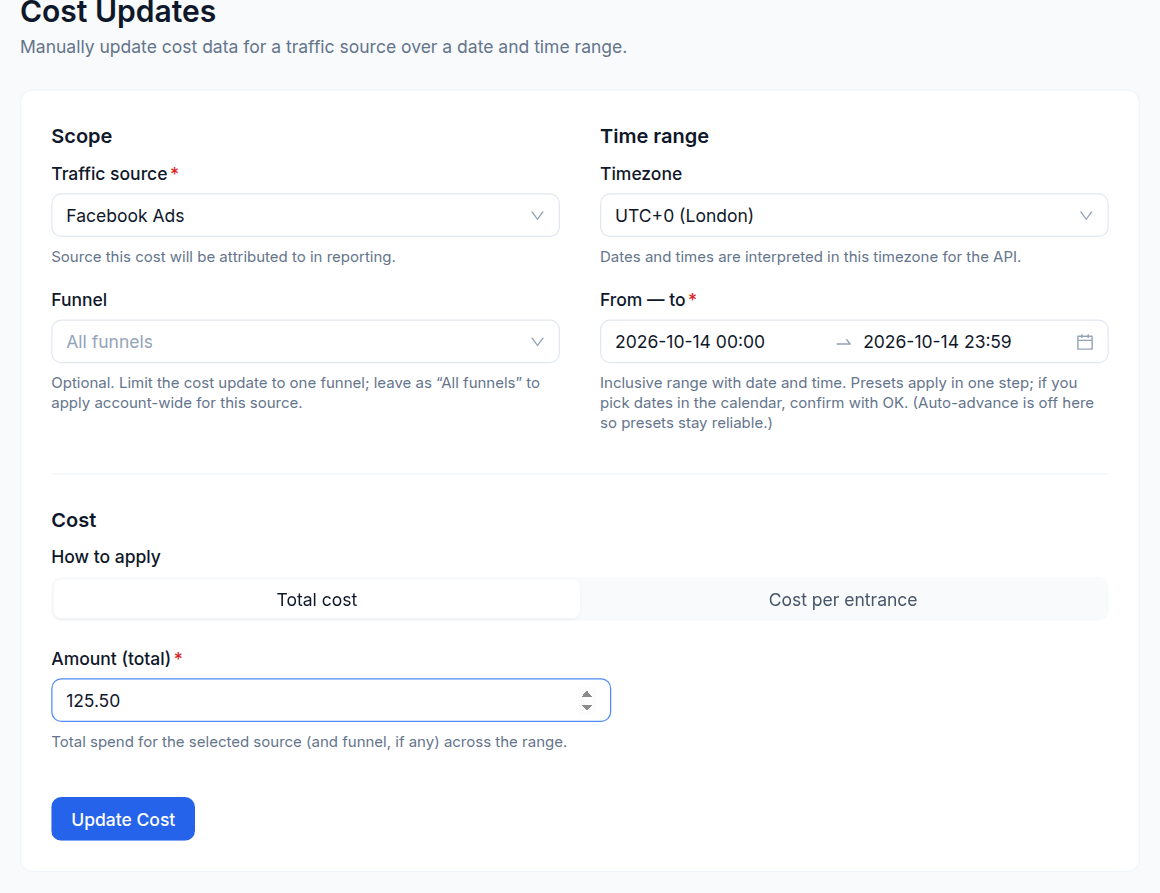
Total cost divides the amount you enter across every matching entrance.
If you enter 152.30 and 873 visitors match, each of those entrances gets a cost per entrance of 152.30 / 873, which is $0.1745.
Cost per entrance sets every matching entrance to the cost you enter. Total cost is the usual choice, because source reports give spend across an aggregate.
You can also automate this with the FunnelFlux API and the traffic source’s API.